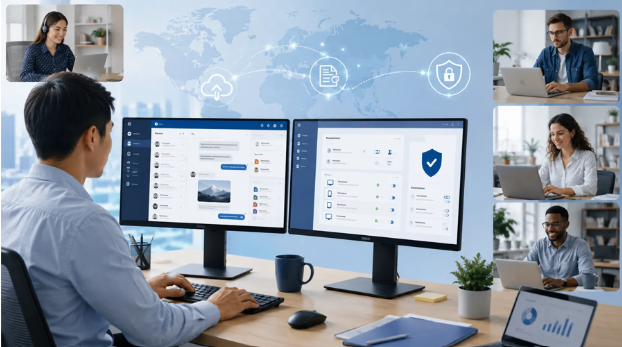
Distributed teams depend on messaging tools for project updates, file sharing, quick decisions, and coordination across different time zones. While mobile applications are useful for short conversations, employees who spend most of the working day on Windows computers often need a more structured desktop communication environment.
A properly configured desktop messaging application can make it easier to review long discussions, manage shared files, respond to several conversations, and keep work-related communication organized. However, teams should not treat installation as the only setup task.
Reliable business use also requires careful source verification, account protection, notification management, file controls, and clear internal policies. By standardizing these areas, organizations can reduce security risks and help employees communicate more efficiently.
Define the Business Use Case First
Before selecting or configuring a messaging tool, organizations should identify how it will be used.
Some teams need only basic text communication, while others may require:
- Department and project groups
- Direct employee messaging
- File and document sharing
- Voice or video communication
- Searchable conversation history
- Desktop and mobile synchronization
- Notification controls
- Administrative permissions
- Support for multilingual users
The intended use case determines which settings and policies are most important.
For example, a customer-support team may prioritize fast notifications and searchable conversations. A project-management team may focus more on file organization, group permissions, and clear communication channels.
Without a defined use case, employees may create unnecessary groups, share files inconsistently, or use the application for tasks better handled by a document-management or project-management system.
Verify the Installation Source
Desktop communication software should always be obtained from a verified source.
Search results may include unofficial download pages, outdated installers, advertisements, software mirrors, and websites that imitate familiar branding. Some pages may distribute modified installation packages or bundle additional software.
Before downloading an application, users should check:
- Whether the domain name is spelled correctly
- Whether the website provides clear product information
- Whether the connection uses HTTPS
- Whether the download matches the operating system
- Whether the installer has a valid digital signature
- Whether the page requests unnecessary personal information
- Whether the file comes from an official or trusted distribution channel
Users researching 电报 should understand the difference between the messaging service, independent informational websites, and unofficial pages using similar names.
Businesses should document the approved source and installation process instead of asking every employee to find the software independently.
Choose the Correct Desktop Version
Communication platforms may offer several access methods:
- Windows desktop application
- Browser-based web application
- Mobile application
- Portable desktop version
- Third-party client
- Application-store version
These options are not always identical.
A browser version may be convenient for occasional access but may provide different file, notification, or session-management features. A portable version may not follow the same update process as a standard installation.
For managed business computers, the IT team should specify which version employees are permitted to use.
The approved version should be:
- Compatible with current Windows systems
- Regularly updated
- Easy to remove or repair
- Supported by the organization
- Suitable for the required business features
Employees should avoid installing multiple versions unless there is a documented business reason.
Confirm System Requirements
Before installation, users should check whether the computer meets the application requirements.
Important factors include:
- Windows version
- Processor architecture
- Available storage
- Memory
- Network connection
- Administrative permissions
- Security software compatibility
Older computers may run the application but perform poorly when several conversations, file transfers, or voice calls are active.
Organizations should also confirm whether installation requires administrator approval. Employees should not disable antivirus software or Windows security controls merely to complete an installation.
If a security warning appears, the installer and its source should be reviewed before proceeding.
Protect the Account From the Beginning
Account security should be configured immediately after registration or the first successful login.
A secure setup should include:
- A unique password where applicable
- Two-step verification
- A protected recovery email
- Review of active sessions
- Device login alerts
- A strong device passcode
- Restricted access to recovery information
Verification codes should never be shared with coworkers, support accounts, group administrators, or people claiming to represent the platform.
Scammers may request login codes by pretending to help with account verification or technical problems. A legitimate support process should not require the user to disclose a private verification code.
Employees should also verify that recovery information belongs to them and is not controlled by a temporary phone number or shared account.
Review Active Sessions
Messaging accounts are often used across several devices. An employee may be logged in on a desktop computer, mobile phone, tablet, and browser at the same time.
This convenience can create risk when old sessions remain active.
Users should regularly review:
- Device names
- Login locations
- Last active times
- Browser sessions
- Old computers
- Lost or replaced phones
Unknown or outdated sessions should be closed.
When an employee leaves the organization or changes responsibilities, access to business communication groups should also be reviewed. Removing an employee from a work group may not automatically end all account sessions or remove downloaded files from their devices.
Configure the Desktop Environment
For employees who work primarily on Windows, a properly configured 电报电脑版 environment can make message handling and file review more efficient.
Desktop users should review the following settings:
- Application startup behavior
- Automatic updates
- Download folder
- Notification previews
- Sound alerts
- Message display size
- Language preferences
- Keyboard shortcuts
- File-opening behavior
- System-tray settings
The application should not automatically open every downloaded file. Employees should review attachments before launching them, especially executable files, archives, scripts, and unknown document formats.
The default download folder should also be easy to locate and included in the organization’s security and backup policies.
Organize Groups by Purpose
Poorly organized communication groups quickly become difficult to manage.
A business may create groups for:
- Individual projects
- Departments
- Customer support
- Announcements
- Technical incidents
- Social conversation
- Management coordination
Each group should have a clear name and purpose.
For example, a project group can include the project name, region, or client name. An announcement group should be reserved for information that employees need to see, rather than general discussion.
Teams should avoid creating several groups with nearly identical names. Duplicate groups make it harder to find the correct conversation and increase the risk of sending confidential information to the wrong audience.
Define Group Permissions
Not every member should necessarily be able to change group information, add new users, create invitation links, or remove messages.
Administrators should review:
- Who can add members
- Who can approve new participants
- Who can post announcements
- Who can change the group name or image
- Who can create invitation links
- Who can manage pinned messages
- Who can delete content
- Who can appoint additional administrators
Administrative access should be limited to people who need it.
Teams should also remove unused invitation links. Publicly shared or long-lived links may allow unexpected users to request access or join a group.
Manage Notifications Carefully
Desktop notifications can improve response times, but excessive alerts can interrupt focused work.
Employees should configure notifications according to the importance of each conversation.
A practical approach may include:
- Enable alerts for direct messages
- Enable alerts for urgent project groups
- Mute low-priority social groups
- Disable message previews for confidential chats
- Set quiet hours outside working time
- Use different notification rules for desktop and mobile devices
Managers should avoid expecting employees to respond immediately to every message. Teams should define which situations are urgent and which can wait until normal working hours.
A familiar and predictable notification policy helps prevent important messages from being lost among routine alerts.
Control File Downloads
Messaging tools make file sharing convenient, but automatic downloads can create security and storage problems.
Organizations should decide:
- Which file types may be shared
- Whether automatic downloads are allowed
- Where downloaded files are stored
- How long files should be retained
- Whether files must be transferred to approved storage
- How suspicious attachments should be reported
Employees should be cautious with:
- Executable files
- Password-protected archives
- Unexpected invoices
- Macro-enabled documents
- Software installers
- Remote-access applications
- Files with misleading extensions
A file sent by a familiar contact is not automatically safe. The sender’s account may have been compromised.
When a file is unexpected, the employee should verify the request through a separate communication method before opening it.
Separate Messaging From Document Storage
Communication platforms are useful for transferring files, but they should not always be treated as the permanent location for business documents.
Important files should be moved into the organization’s approved document repository, cloud drive, or project-management system.
This improves:
- Version control
- Access permissions
- Searchability
- Backup coverage
- Document retention
- Audit history
When several versions of a report are shared in a messaging group, employees may not know which one is final.
A better workflow is to store the official file in a controlled location and use the messaging platform to share the approved link or announce that the document has been updated.
Use Clear File Names
Files named “new,” “final,” “latest,” or “updated” create confusion.
Business files shared through desktop messaging tools should use clear names containing information such as:
- Project
- Document type
- Date
- Version
- Approval status
- Region or department
For example: APAC_Sales_Report_2026-07_v04_Approved.pdf
This makes it easier for recipients to identify the correct document without opening every attachment.
Clear file names are particularly useful when employees download files to Windows computers and review them outside the original conversation.
Protect Confidential Conversations
Messaging applications may contain pricing information, customer details, internal plans, login instructions, or employee information.
Teams should decide what information may and may not be shared through messaging channels.
Sensitive information should not be posted in large groups unless every participant is authorized to view it.
Employees should avoid sharing:
- Passwords
- Verification codes
- Private recovery information
- Full payment-card information
- Unnecessary personal data
- Unencrypted private keys
- Confidential customer records
- Administrator credentials
For highly sensitive matters, the organization may require a different approved system or a formal document-sharing process.
Recognize Suspicious Messages
Business messaging accounts are frequent targets for phishing and impersonation.
Warning signs include:
- Urgent requests for payment
- Unexpected changes to bank details
- Requests for verification codes
- Links with misspelled domains
- Messages from newly created accounts
- Promises of guaranteed investment returns
- Requests to install remote-access software
- Claims that an account will be deleted immediately
- Files sent without explanation
Employees should not rely only on profile names or images. These details can be copied.
Payment requests and account changes should be confirmed through an established internal approval process.
Manage Links More Safely
Messages may contain links to documents, login pages, cloud storage, software downloads, and external websites.
Before opening a link, users should inspect the domain and consider whether the destination matches the context of the message.
Shortened links should be treated carefully when the sender has not explained their purpose.
When a message claims to link to a familiar service, users can open that service separately using a saved bookmark or manually entered address. This reduces the risk of entering credentials on an imitation page.
Organizations can also maintain a list of approved business services and common domains used by employees.
Coordinate Desktop and Mobile Use
Employees often use the same account on both desktop and mobile devices.
Desktop access is useful for:
- Long messages
- Large files
- Multitasking
- Search
- Document review
- Keyboard-based work
Mobile access is useful for:
- Travel
- Quick responses
- Authentication
- Urgent notifications
- Location-independent communication
Teams should configure each device according to its purpose.
For example, automatic file downloads may be appropriate on a managed office computer but unsuitable on a personal mobile device.
Employees should also understand that deleting a downloaded file from a conversation may not remove copies already saved on other devices.
Prepare Multilingual Teams
International teams may use different interface languages and keyboard layouts.
On Windows computers, employees should understand the difference between:
- Application interface language
- Windows display language
- Keyboard input method
- Browser language
- Regional date format
Changing the interface language does not automatically change the keyboard.
Organizations with multilingual teams should provide setup instructions that include current screenshots, written menu paths, and the application version used in the example.
Language support documentation should also explain how employees can switch between Chinese and English input methods without affecting other settings.
Create an Onboarding Checklist
New employees should receive a standard setup process.
A desktop messaging onboarding checklist can include:
- Download the approved version
- Verify the installer
- Sign in using an authorized account
- Enable two-step verification
- Review active sessions
- Configure language and keyboard settings
- Set notification preferences
- Join approved work groups
- Confirm file-download settings
- Review internal communication policies
- Test message and file delivery
- Save support contact information
A consistent checklist reduces configuration differences and makes technical support easier.
It also helps new employees begin communicating effectively from their first day.
Define Offboarding Procedures
When an employee leaves a company, communication access should be reviewed promptly.
The offboarding process may include:
- Removing the employee from business groups
- Revoking administrator permissions
- Closing managed sessions
- Changing shared credentials
- Transferring important files
- Reviewing invitation links
- Preserving required business records
- Removing access from company devices
Organizations should not assume that disabling an email account automatically removes messaging access.
Access should be reviewed separately for every business communication platform.
Maintain Updates
Outdated desktop applications may contain security problems or compatibility issues.
Organizations should define how updates are handled.
Possible approaches include:
- Automatic updates
- Centralized IT deployment
- Scheduled version reviews
- User update notifications
- Testing before company-wide release
Employees should not postpone updates indefinitely, but businesses may need to test major versions before deployment.
Setup guides and screenshots should also be reviewed after significant interface changes.
Review the Communication Workflow
Communication systems should be reviewed regularly.
Managers can evaluate:
- Which groups are still active
- Whether permissions are appropriate
- Whether important files are stored correctly
- Whether employees receive too many notifications
- Whether suspicious messages have been reported
- Whether old invitation links remain active
- Whether former employees retain access
- Whether users understand account-security settings
Unused groups should be archived or closed. Administrative access should be reduced when it is no longer required.
Regular reviews keep the system easier to navigate and reduce unnecessary exposure.
Conclusion
Reliable desktop communication requires more than installing an application. Distributed teams need verified software sources, secure account configuration, organized groups, controlled file sharing, and clear internal policies.
Windows users should configure notifications, downloads, language settings, and device sessions according to their working environment. Organizations should also build communication setup into employee onboarding and access removal into offboarding.
By standardizing these practices, businesses can make desktop messaging more efficient while reducing the risks associated with unofficial downloads, unmanaged accounts, suspicious links, and poorly controlled business information.